Key takeaways
- Hostinger pre-installs the LiteSpeed Cache plugin and lets you turn LiteSpeed on with a preset in hPanel.
- Hostinger recommends the Advanced preset for most sites. Start there, then tune.
- Turn on safe settings first (page cache, CSS and JS minify) and leave combine, UCSS and JS defer off until you have tested.
- Object cache is available on Hostinger’s Business plan and higher. Never run two page cache plugins together.
The short answer
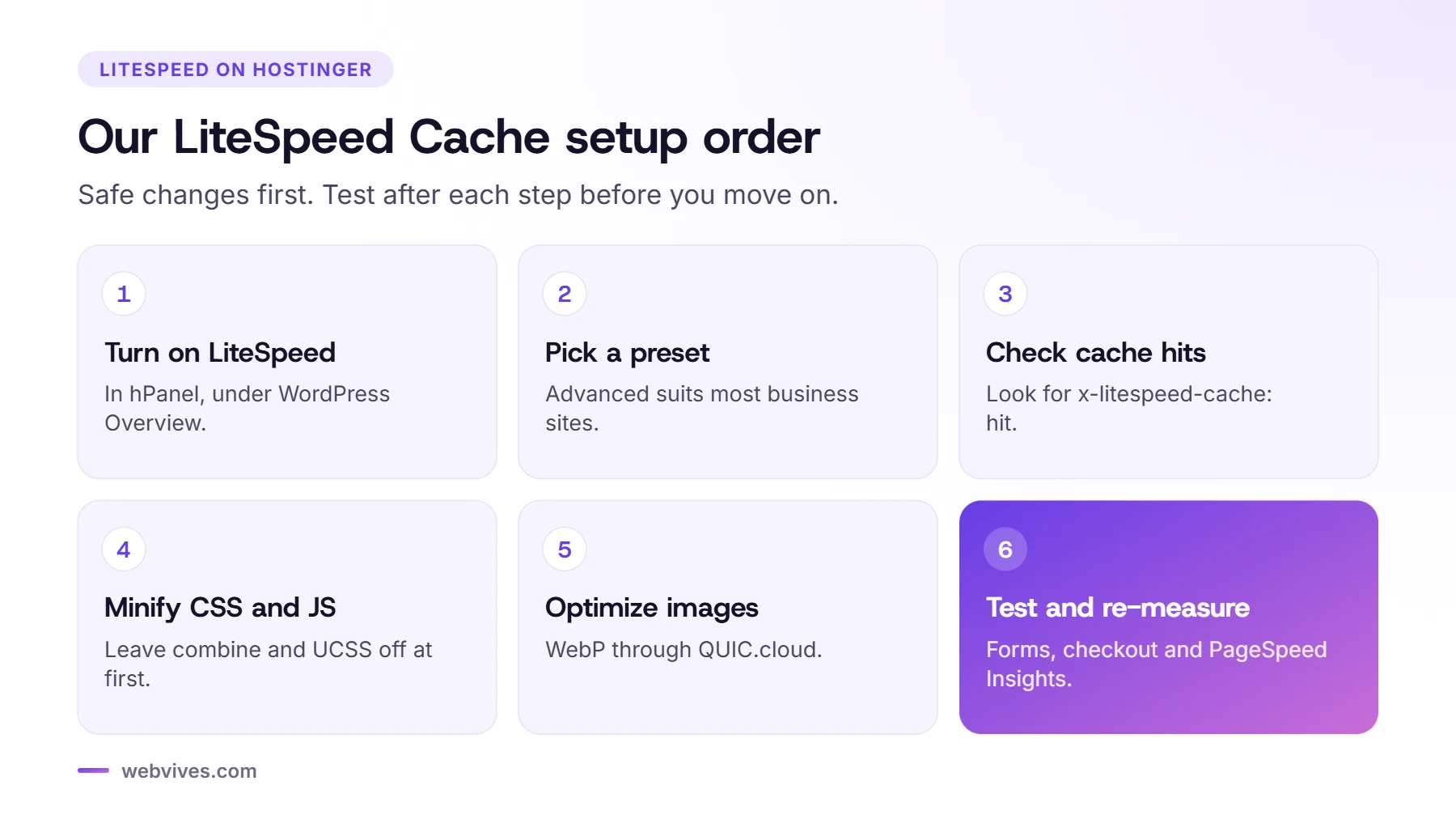
On Hostinger, turn on LiteSpeed for your WordPress site in hPanel, choose the Advanced preset, confirm pages are being cached, then switch on CSS and JS minification and WebP images one step at a time. Test your forms, cart and checkout after every change. That gets most business sites most of the speed with very little risk.
Why LiteSpeed Cache on Hostinger
LiteSpeed Cache is a free WordPress plugin that caches full pages at the server level and adds front-end optimizations such as minification, lazy loading and image conversion. Hostinger pre-installs it on WordPress sites and adds a LiteSpeed switch with presets in hPanel, so you don’t need a separate caching plugin.
If you’re still choosing a host, we use Hostinger for many small business WordPress sites because LiteSpeed is built into the setup.
Step 1: Turn on LiteSpeed in hPanel
In hPanel, open your website’s dashboard, go to WordPress, then Overview, and switch on LiteSpeed. Hostinger offers three profiles: Basic, Advanced and Aggressive. Its own guide calls Advanced the recommended profile for most types of site. Aggressive can break layouts or scripts, so only try it on a staging copy.
Step 2: Check the Cache tab
In the plugin, go to LiteSpeed Cache, then Cache. These are the settings Hostinger recommends, and they match what we use on most brochure and service sites:
| Setting | Recommended |
|---|---|
| Enable Cache | On |
| Cache REST API | On |
| Cache Login Page | On |
| Cache favicon.ico | On |
| Cache PHP Resources | On |
| Cache Logged-in Users | Off (unless it’s a membership site) |
| Cache Commenters | Off |
| Cache Mobile | Off (unless you use AMP) |
To confirm caching works, open your site in a private window, open your browser’s developer tools, reload, and check the response headers for x-litespeed-cache: hit. The first visit may show a miss; the second should be a hit.
Step 3: CSS and JavaScript
This is where most problems come from, so go slowly. In Page Optimization:
- CSS Minify: on
- CSS Combine, Generate UCSS and Load CSS Asynchronously: off to start
- JS Minify: on
- JS Combine: off
- Load JS Deferred: test it. It can help scores, but it can also break sliders, menus or forms.
After each change, purge the cache and click through your key pages: the menu on mobile, forms, any popups, and the cart and checkout on WooCommerce.
Step 4: Images and WebP
LiteSpeed’s image optimization runs through its QUIC.cloud service and needs a domain key. Once connected, Hostinger’s guide recommends turning on automatic requests and pulls, optimizing originals, creating WebP versions and replacing images with WebP, while keeping backups of the originals. If you already compress images before upload, you can skip this step.
Step 5: Object cache
Object cache stores database query results in memory, which helps dynamic sites such as WooCommerce stores and membership sites. Hostinger’s support article says it’s available on Business plans and higher, using LiteSpeed Memcached, and it turns on with the LiteSpeed switch in hPanel.
Step 6: Test and re-measure
Run your homepage and one key inner page through PageSpeed Insights before and after. Focus on the mobile Core Web Vitals, not just the score, and check the real-user data once enough visitors have come through.
Our results on webvives.com
Our own site runs on Hostinger with LiteSpeed Cache, set up the way this guide describes. Alongside the cache settings, we delayed Google Tag Manager until the visitor interacts and loaded reCAPTCHA only when someone starts filling in a form. These were the PageSpeed Insights results for our homepage in November 2026:
| Homepage | Before | After |
|---|---|---|
| Mobile performance score | 88 | 98 |
| Desktop performance score | 81 | 97 |
| Mobile Largest Contentful Paint | Not recorded | 1.2 s |
| Desktop Largest Contentful Paint | Not recorded | 0.4 s |
| Accessibility, Best Practices, SEO | Not recorded | 100 / 100 / 100 |
Common mistakes
- Two cache plugins at once. Don’t run LiteSpeed Cache together with another page cache plugin such as WP Rocket or W3 Total Cache. Pick one.
- Caching logged-in pages. Leave Cache Logged-in Users off unless you know you need it.
- Turning everything on at once. When something breaks, you won’t know which setting caused it.
- Forgetting WooCommerce. Make sure the cart, checkout and account pages are not cached, and test a real order.
Sources and further reading
- Optimizing WordPress with the LiteSpeed Cache plugin (Hostinger)
- How to manage object cache for WordPress websites (Hostinger Help)
- LiteSpeed Cache for WordPress documentation (LiteSpeed Technologies)
- Web Vitals (web.dev, Google)
Frequently asked questions
Is LiteSpeed Cache free?
Yes. The LiteSpeed Cache plugin is free. Some image optimization and CDN features run through QUIC.cloud, which has its own free and paid usage.
Which LiteSpeed preset should I use on Hostinger?
Hostinger recommends the Advanced preset for most sites. Use Basic if you see problems, and only try Aggressive on a staging copy.
Does Hostinger include object cache?
According to Hostinger, object cache is available on Business hosting plans and higher, and it turns on with the LiteSpeed switch in hPanel.
Why did my site break after enabling LiteSpeed optimizations?
Usually because of CSS or JS combine, UCSS or deferred JavaScript. Turn those off, purge the cache and re-enable settings one at a time.
Can I use WP Rocket with LiteSpeed Cache?
Don’t run two page caching plugins together. On a LiteSpeed server, LiteSpeed Cache is usually the simplest choice.