Key takeaways
- Most slow Shopify stores are slowed down by apps, heavy media and third-party scripts, not by Shopify’s servers.
- Measure first: use PageSpeed Insights and Shopify’s web performance report, and focus on real-user Core Web Vitals.
- Uninstalling an app doesn’t always remove its code. Leftover snippets are one of the most common hidden causes.
- Make changes on a duplicate theme, test everything, then publish.
Measure first: what “slow” really means
Before you change anything, measure. Run your homepage, a collection page and a product page through PageSpeed Insights, and check the web performance report in your Shopify analytics, which shows how real visitors experience your store.
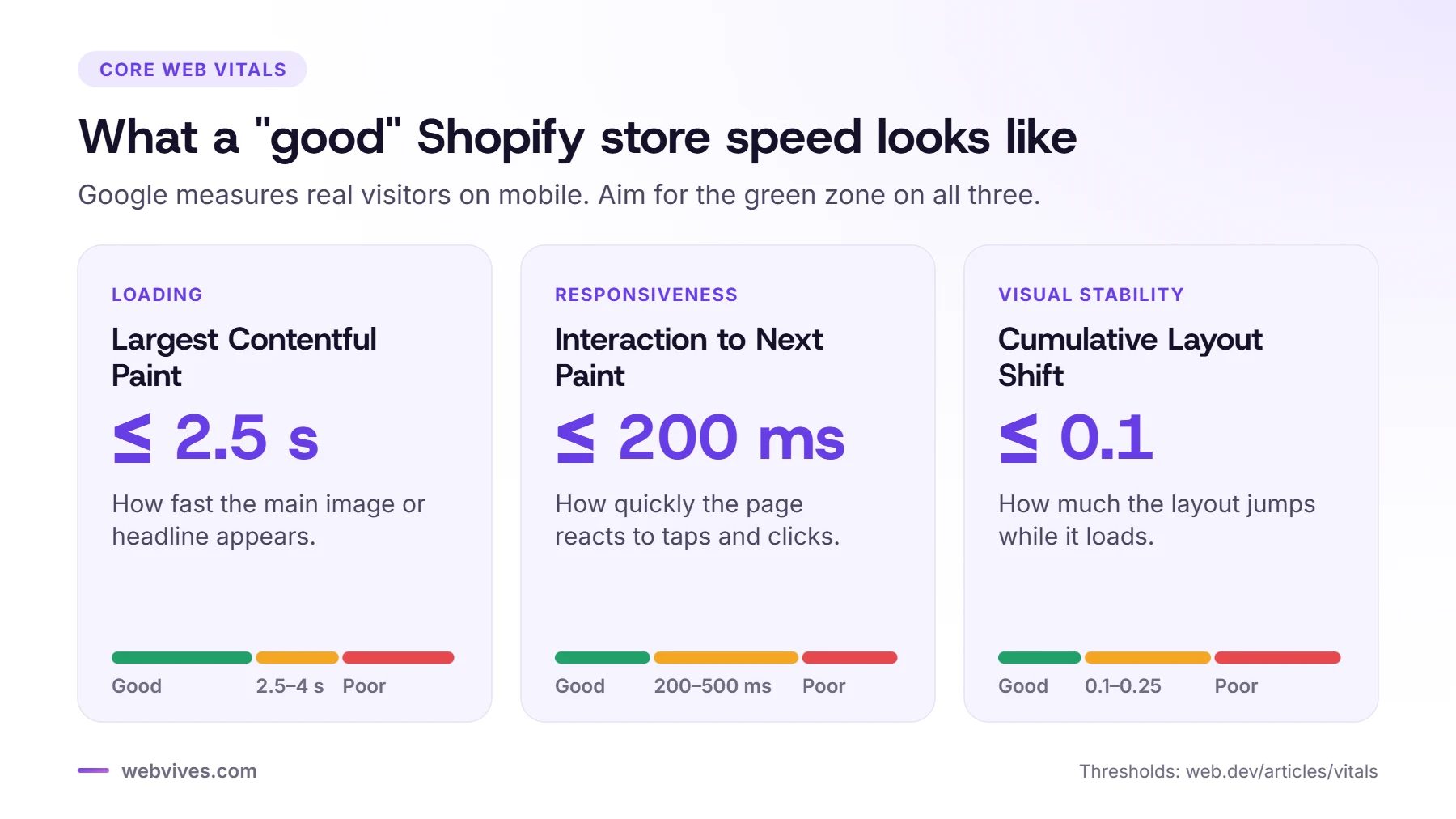
Focus on Google’s three Core Web Vitals, measured on mobile:
- Largest Contentful Paint (LCP): how quickly the main content appears. Good is 2.5 seconds or less.
- Interaction to Next Paint (INP): how quickly the page responds to taps and clicks. Good is 200 milliseconds or less.
- Cumulative Layout Shift (CLS): how much the layout jumps around while loading. Good is 0.1 or less.
Don’t chase a perfect lab score. A store with a 70 score and good real-user Core Web Vitals is in better shape than one with a 95 score that broke half its features to get there.
1. Audit your apps
Apps are the number one cause of slow Shopify stores we see. Each one can add scripts and styles to every page. List every installed app and ask: do we still use it, does it earn its place, and is there a lighter way to do the same job? Remove what you don’t need, and consider replacing simple features (like badges, tabs or announcement bars) with native theme sections.
2. Remove leftover app code
Uninstalling an app doesn’t always remove its code from your theme. Older apps especially leave snippets, script tags and styles behind. Search your theme files for app names you no longer use and clean them up carefully, on a duplicate theme first.
3. Lighten the hero section
The first big image or slider on the page is usually your LCP element. Replace auto-rotating sliders with a single, strong hero image, make sure it isn’t lazy-loaded, and serve it at the right size for mobile and desktop.
4. Size images properly
Shopify’s image CDN can resize and convert images automatically, but only if your theme asks for sensible sizes. Avoid uploading huge originals and displaying them at full size, use responsive image sizes, and lazy-load images below the fold.
5. Be careful with video
Autoplay background videos are heavy, especially on mobile. Use a poster image, load the video only when needed, keep files short and compressed, or show the video only on larger screens.
6. Delay third-party scripts
Chat widgets, review widgets, pixels, popups and heatmap tools all compete for the browser’s attention. Load the ones that aren’t needed immediately after the page becomes usable, and only on the pages where they’re needed.
7. Reduce fonts
Every font family and weight is another file to download. Two families and three or four weights are usually plenty. Use the theme’s font settings rather than loading extra fonts through apps or custom code.
8. Check your theme
Older or heavily customized themes can be slow no matter what you do. Modern Online Store 2.0 themes, including Shopify’s Horizon theme, are built with performance in mind. If your theme is several years old, moving to a modern theme can be the biggest single speed improvement.
9. Use page builder apps where they make sense
Page builder apps like PageFly are great for campaign landing pages, but building your whole store with one can add weight. Use theme sections for core pages and keep builders for the pages that really need them.
10. Keep collection pages lean
Showing a very large number of products per page, with quick-view, swatches and multiple images for each, makes collection pages heavy. Use sensible pagination or “load more”, and keep product cards simple.

The order we work in
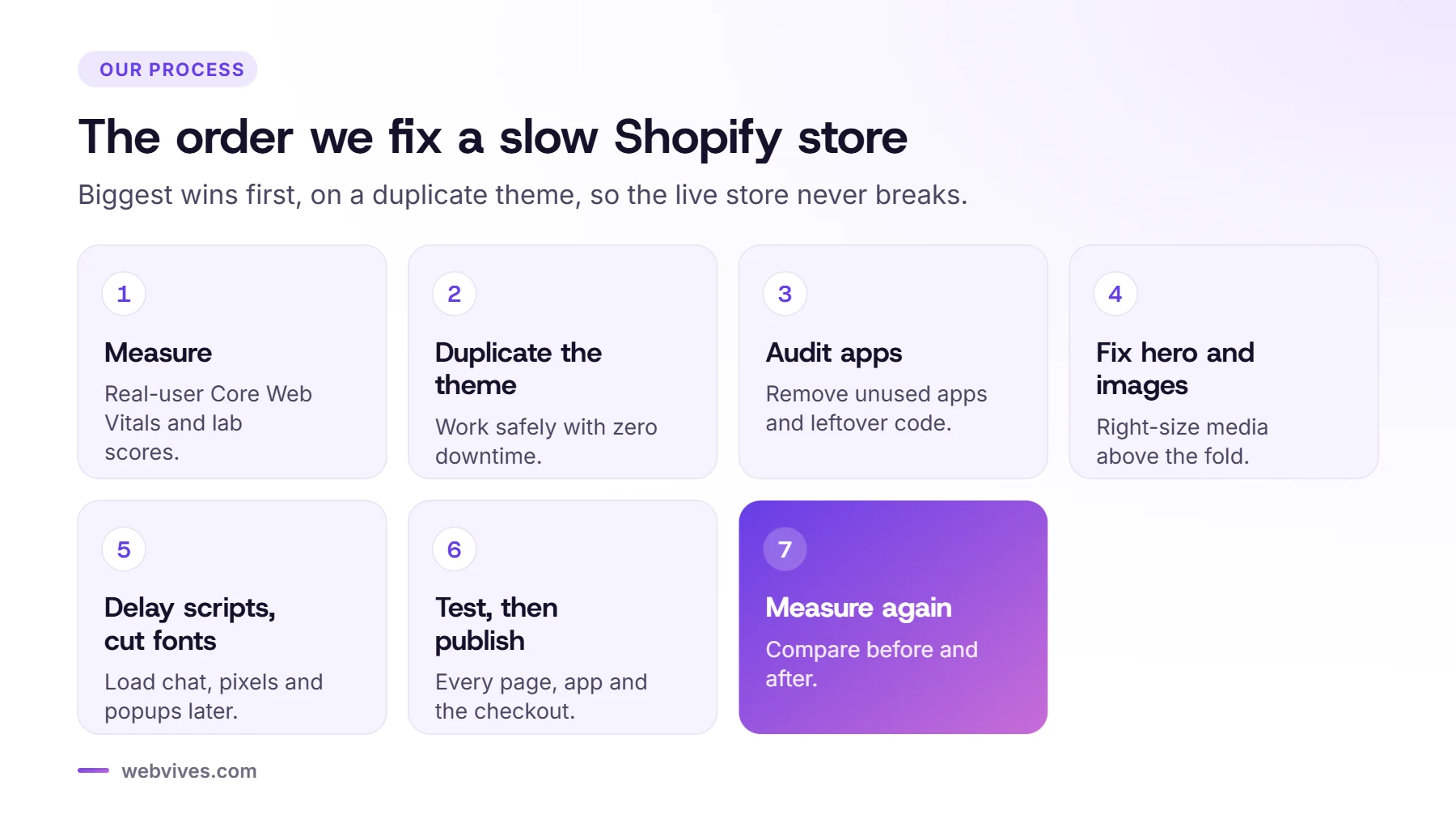
- Measure real-user Core Web Vitals and lab scores.
- Duplicate the live theme.
- Audit apps and remove leftover code.
- Fix the hero and image sizes.
- Delay third-party scripts and reduce fonts.
- Test every page, app and the checkout, then publish.
- Measure again and compare.
Most stores get a big improvement from the first few steps alone, without losing any feature that earns them money.
Frequently asked questions
Why is my Shopify store so slow?
The most common causes are too many apps, leftover code from uninstalled apps, large images and autoplay videos, too many fonts, and third-party scripts such as chat widgets, pixels and popups.
What is a good PageSpeed score for Shopify?
There isn’t one magic number. Aim for Core Web Vitals in the ‘good’ range for real users: Largest Contentful Paint under 2.5 seconds, Interaction to Next Paint under 200 milliseconds and Cumulative Layout Shift under 0.1.
Do Shopify apps slow down my store?
Many do, because they load their own scripts and styles. Some only load where needed; others load on every page. Review each app, remove the ones you don’t use and check for leftover code.
Will a faster store increase sales?
Faster pages generally keep more shoppers on the site, especially on mobile, and Core Web Vitals are part of Google’s page experience signals. The exact impact depends on your store, so measure before and after.
Sources and further reading
- Online store web performance (Shopify Help Center)
- Web Vitals (web.dev, Google)
- Interaction to Next Paint (INP) (web.dev, Google)