Key takeaways
- Most ranking losses after a migration come from missing redirects, not from Shopify itself. Map every old URL before you move anything.
- Shopify uses fixed URL patterns (/products/, /collections/, /pages/, /blogs/), so almost every WooCommerce URL will change and needs a 301 redirect.
- Customer passwords can’t be migrated on any platform. Plan an account invite email before launch.
- Run the migration on a development store first, test everything, and switch your domain only when the new store is ready.
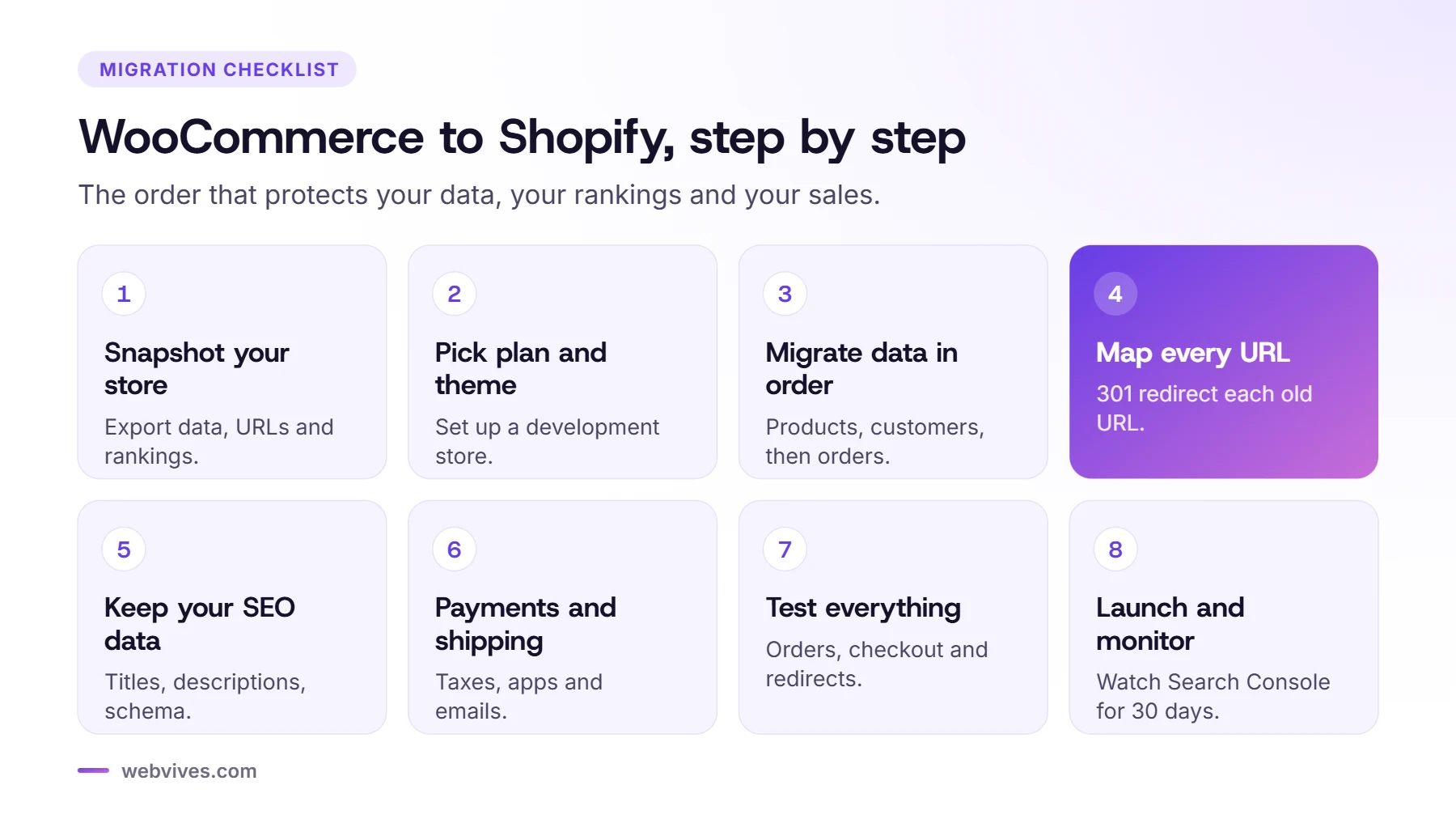
Before you start: take a snapshot of your store
A migration is the one moment when you can lose years of SEO work in a single afternoon. The fix is simple: write down exactly what you have before you change anything, so you can check that all of it made it across.
- Crawl your current site. Use a crawler such as Screaming Frog to export every URL: products, categories, tags, pages, blog posts and images.
- Export your top pages. In Google Search Console, export the pages with the most clicks and impressions over the last 12 months. These are the URLs you can’t afford to lose.
- Save a baseline. Note your monthly organic traffic, conversion rate and revenue, so you can compare after launch.
- List every plugin. Write down what each WooCommerce plugin does (reviews, subscriptions, wishlists, B2B pricing, email). Each one needs a Shopify app, a built-in feature or custom code.
- Take a full backup of your WordPress files and database.
Choose your Shopify plan and theme
Pick a plan based on your sales volume and the features you need. At the time of writing, Shopify’s plans start at $39/month for Basic when billed monthly ($29/month billed yearly), with Grow at $105/month and Advanced at $399/month. If you use Shopify Payments, Shopify doesn’t add a separate transaction fee; if you use a third-party payment provider, it charges an extra fee that gets smaller on higher plans.
For the theme, start with a modern Online Store 2.0 theme such as Shopify’s free Horizon theme, or a premium theme that’s close to your current design. Rebuilding your exact WooCommerce look is possible, but a migration is also a good moment to fix what isn’t converting.
Migrate your data, in the right order
We move data in this order, because each step depends on the one before it:
- Products and variants: titles, descriptions, prices, compare-at prices, SKUs, barcodes, weights, inventory, images and tags. WooCommerce attributes become Shopify options (Shopify allows up to three options per product), so check any product with complex variations.
- Collections: WooCommerce categories usually become Shopify collections. Use smart collections (based on tags or product type) where you can, so new products sort themselves.
- Customers: names, emails, addresses, tags and marketing consent. Only import marketing consent you actually have.
- Orders: past orders, so customers and your support team can still see purchase history.
- Content: pages and blog posts, with images re-uploaded to Shopify and internal links updated.
- Reviews: exported from your WooCommerce review plugin and imported into a Shopify review app such as Judge.me.
For bulk work we use Matrixify, which can import products, customers, orders, blog posts and redirects from spreadsheets. Shopify’s own store import tool can also bring in products and customers from a WooCommerce export. Whatever tool you use, spot-check 20–30 products by hand, especially ones with many variants.
Map every old URL to a new one
This is the most important step for SEO. Shopify uses fixed URL patterns, so almost every URL changes:
| Page type | WooCommerce (typical) | Shopify |
|---|---|---|
| Product | /product/blue-hoodie/ | /products/blue-hoodie |
| Category | /product-category/hoodies/ | /collections/hoodies |
| Page | /about-us/ | /pages/about-us |
| Blog post | /2025/05/hoodie-care-guide/ | /blogs/news/hoodie-care-guide |
| Shop page | /shop/ | /collections/all |
Build a spreadsheet with two columns, old URL and new URL, using your crawl and Search Console export. Then import it into Shopify’s URL redirects (in the admin, or in bulk with Matrixify). A few rules we follow:
- Redirect each old URL to its closest match, not to the homepage.
- Keep the same product handles (the last part of the URL) where you can, so the mapping stays simple.
- Redirect old tag and filter URLs that get traffic to the most relevant collection.
- Don’t forget image URLs and PDF links that other sites link to.

Keep your titles, descriptions and structured data
Copy your SEO titles and meta descriptions from Yoast or Rank Math into Shopify’s search engine listing fields for each product, collection, page and post. Check that your theme outputs product structured data (price, availability, reviews), and add alt text to images that lost it during import.
Set up payments, shipping, taxes and apps
- Payments: Shopify Payments plus express wallets like Shop Pay, Apple Pay and Google Pay where available.
- Shipping zones and rates that match what you charged on WooCommerce.
- Taxes for each country or state you sell to.
- Email notifications rewritten in your brand voice.
- Apps to replace each plugin on your list, or custom theme code where an app would slow the store down.
- Analytics: Google Analytics 4, Meta pixel and any other tracking reconnected, then tested.
Test everything before launch
- Place test orders with each payment method, including a discount code and a refund.
- Check product pages with many variants on a phone.
- Test 50–100 redirects from your spreadsheet, starting with the top pages from Search Console.
- Check that customer accounts exist and order history appears for a few real customers.
- Run PageSpeed Insights on your homepage, a collection and a product page.
Launch day
- Pause product and content edits on WooCommerce, then run a final sync of new orders and customers.
- Connect your domain to Shopify and set it as the primary domain.
- Remove the store password.
- Submit your Shopify sitemap (yourdomain.com/sitemap.xml) in Google Search Console.
- Send the account invite email to customers, explaining the new store and how to set a password.
- Keep your old WordPress site and database backed up, but not publicly accessible.
The first 30 days after launch
Check Search Console every few days for 404 errors and add redirects for anything you missed. Compare organic traffic, conversion rate and revenue with your baseline each week. It’s normal to see small ranking movements for a few weeks; a sharp, lasting drop usually means missing redirects or lost content, and it’s worth investigating straight away.
Done carefully, a WooCommerce to Shopify migration usually means less maintenance, a faster checkout and a store that’s easier to grow, without giving up the rankings you’ve already earned.
Frequently asked questions
How long does a WooCommerce to Shopify migration take?
Small stores with a simple catalog can move in about 2 weeks. Stores with thousands of products, order history, reviews, subscriptions or custom features usually take 3–5 weeks, including design and testing.
Will I lose my Google rankings when I move to Shopify?
Not if you redirect every old URL to its closest new URL, keep your titles and descriptions, and submit the new sitemap. Small movements in the first few weeks are normal and usually settle.
Can I migrate customer passwords from WooCommerce to Shopify?
No. Passwords are stored encrypted and can’t be moved to any platform. Customer accounts can be imported, and customers set a new password from an account invite email.
What’s the best tool to migrate WooCommerce to Shopify?
For most stores we use Matrixify to import products, customers, orders, blog posts and redirects in bulk, then check the results by hand. Shopify’s own store import tool can also bring in products and customers from a WooCommerce export.
Sources and further reading
- Migrating from WooCommerce (Shopify Help Center)
- Site moves and migrations (Google Search Central)
- Redirects and Google Search (Google Search Central)