Key takeaways
- WCAG 2.2 Level AA is the practical target for US, UK and EU stores. It was published in October 2023.
- Most Shopify accessibility problems come from the theme, apps and content, not from Shopify itself.
- Test with a keyboard and a screen reader as well as automated tools. Scanners catch only part of the issues.
- Fix the money pages first: header and menu, collection, product, cart drawer and search.
The short answer
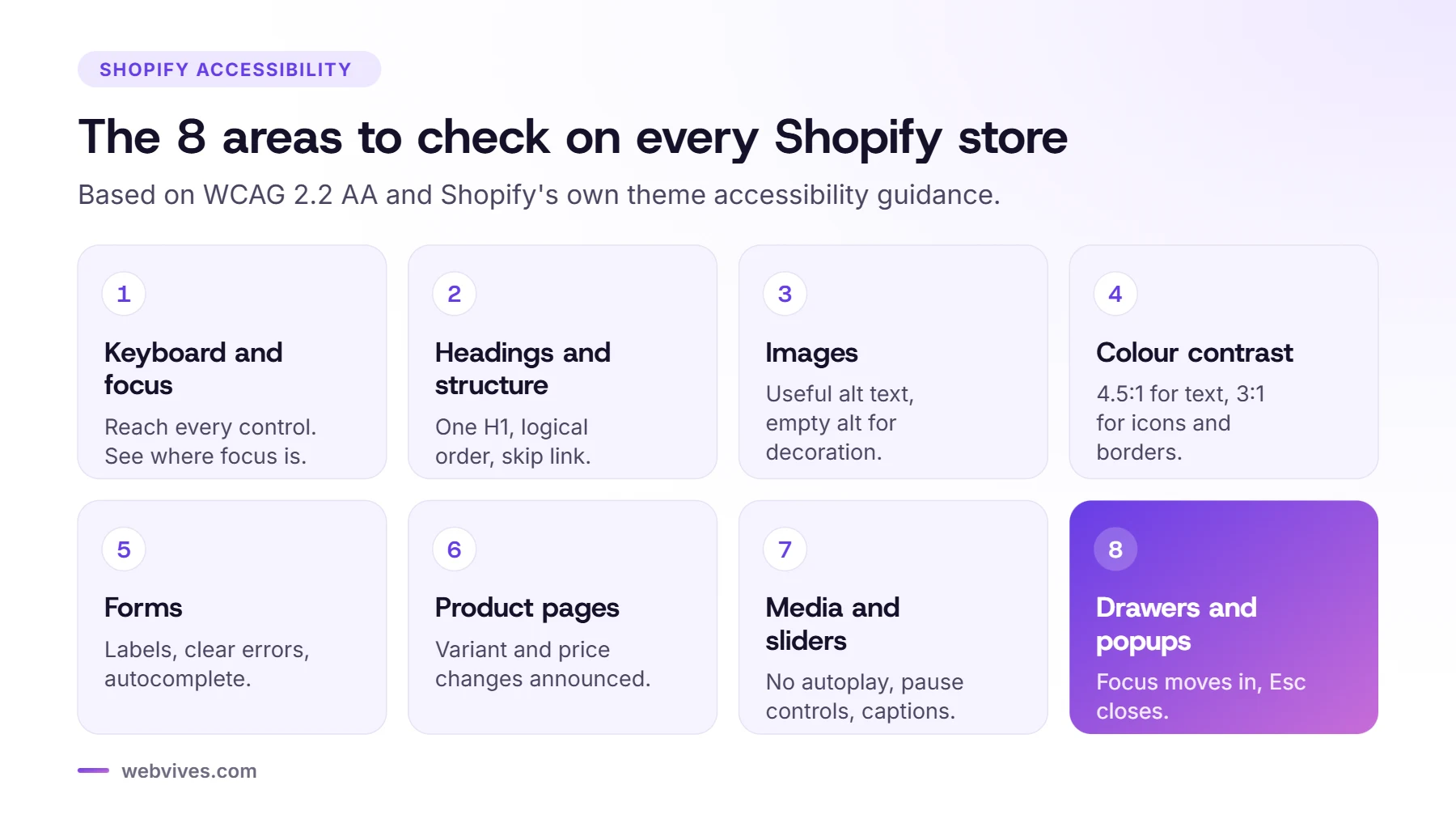
To make a Shopify store accessible, check eight areas: keyboard and focus, page structure, images, color contrast, forms, product pages, media and sliders, and drawers and popups. Fix them in your theme and content, test with a keyboard and a screen reader, and repeat after theme updates or new apps. The checklist below follows WCAG 2.2 AA and Shopify’s own accessibility guidance for themes.
What changed in WCAG 2.2
WCAG 2.2 became a W3C Recommendation on 5 October 2023. It keeps everything from WCAG 2.1 (except the old 4.1.1 Parsing criterion, which was removed) and adds nine new success criteria. The ones at Level A and AA that affect most stores are:
- 2.4.11 Focus Not Obscured (Minimum): sticky headers, cookie banners and chat bubbles must not completely hide the element that has keyboard focus.
- 2.5.7 Dragging Movements: anything you drag, such as a price slider or image comparison, needs a non-dragging alternative.
- 2.5.8 Target Size (Minimum): click and tap targets need to be at least 24 by 24 pixels, with some exceptions. Shopify recommends 44 by 44 for primary controls.
- 3.2.6 Consistent Help: help options such as chat or contact links should appear in the same place across pages.
- 3.3.7 Redundant Entry: don’t make people type the same information twice in one process.
- 3.3.8 Accessible Authentication (Minimum): logins shouldn’t rely on puzzles or memory tests alone; allow password managers and paste.
The checklist
1. Keyboard and focus
- Every link, button, dropdown and form field works with Tab, Enter, Space and Esc.
- A visible focus outline appears on every interactive element. Don’t remove it in your CSS.
- The focus order follows the visual order of the page.
- A skip link lets keyboard users jump past the header to the main content.
2. Headings and structure
- One H1 per page (usually the product or page title), then H2 and H3 in order without skipping levels.
- The page language is set, and zoom is never disabled.
- Navigation is wrapped in a nav element and the current page is marked.
3. Images
- Product images have alt text that describes what matters to a shopper: color, angle, detail.
- Decorative images have empty alt text so screen readers skip them.
- Text isn’t baked into banner images. If it is, repeat it in real text.
4. Color contrast
- Body text and buttons: at least 4.5:1 against the background.
- Large text (24px and up, or about 18.5px bold): at least 3:1.
- Icons, input borders and focus outlines: at least 3:1.
- Color is never the only signal, for example for errors, sale prices or stock status.
5. Forms
- Every field has a visible label linked to it, not just placeholder text.
- Required fields are marked, and autocomplete is used for names, emails and addresses.
- Error messages say what’s wrong and how to fix it, and are announced to screen readers.
6. Product pages
- Variant pickers (size, color) work with a keyboard and have clear labels.
- When a variant changes the price or availability, the change is announced to screen readers.
- Sale prices are clear visually and in text, not only with a strikethrough.
7. Media and sliders
- Videos and slideshows don’t autoplay, or they have a clear pause button.
- Videos have captions, and audio has a transcript.
- Sliders have previous and next buttons that work with a keyboard.
8. Drawers, popups and modals
- When the cart drawer, menu or a popup opens, focus moves into it.
- Keyboard focus stays inside until it’s closed, Esc closes it, and focus returns to the button that opened it.
- Close buttons have an accessible name such as Close cart.
How to test your store
| Tool | What it’s good for | Cost |
|---|---|---|
| Keyboard only | Focus, order, traps in menus and drawers | Free |
| WAVE or axe DevTools | Contrast, missing labels and alt text, heading structure | Free browser extensions |
| Lighthouse in Chrome | A quick accessibility score per page | Free |
| NVDA (Windows) or VoiceOver (Mac, iPhone) | How a screen reader user experiences the store | Free |

Where to start
Start with the journey that earns money: the header and menu, a collection page, a product page, the cart drawer and search. Fix the issues that block a purchase first, such as keyboard traps and unlabeled buttons, then work through contrast and content. Recheck after every theme update and new app.
Sources and further reading
- What’s new in WCAG 2.2 (W3C WAI)
- Accessibility best practices for Shopify themes (Shopify.dev)
- Accessibility in your online store (Shopify Help Center)
- Adding alt text to product media (Shopify Help Center)
Frequently asked questions
Is Shopify accessible out of the box?
Shopify’s checkout and many themes are built with accessibility in mind, but your theme settings, apps and content still need checking. Shopify itself notes that following its guidelines doesn’t guarantee a fully accessible store.
What WCAG level should a Shopify store meet?
WCAG 2.1 or 2.2 Level AA is the usual target for US, UK and EU stores. Building to WCAG 2.2 AA covers both.
What contrast ratio does a Shopify store need?
At least 4.5:1 for normal text and buttons, and 3:1 for large text, icons and input borders.
How big should buttons be on mobile?
WCAG 2.2 AA requires at least 24 by 24 pixels for most targets, and Shopify recommends 44 by 44 pixels for primary controls.
Can an app make my Shopify store accessible?
No app can fix theme code and content for you. Some tools help find problems, but the fixes need to be made in your theme and content.